Configuration
Configuration is an editor for printer.cfg and everything it includes. It shows a split view with the file tree beside the file you are editing.
Requires config_path to be set in moonraker.conf. Without it, the page does not appear.
Switch between the Config and Logs roots at the top. The header shows available configuration storage next to them.
Unsaved changes
Each file you edit gets its own buffer, keyed by its path. The buffer stays open for as long as the tab stays open. Open another file, switch folders, close the editor, or leave for the dashboard: the edit is still there when you come back. Alabaster does not ask whether to keep it.
Saving the file, or clicking Discard changes, is the only way to clear a buffer.
Alabaster marks an unsaved edit on the file's row, on every folder above it at any depth, and on the Configuration entry in the desktop sidebar and the mobile bar, from whatever page you are on. The marker is a badge dot, so it does not depend on color alone.
Save all and Discard all act on every unsaved file at once. Both list the files they will touch before doing it.
Include links
[include] targets are links. Hovering underlines the path. Ctrl+click opens it.
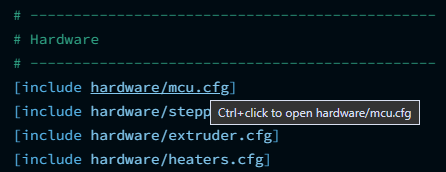
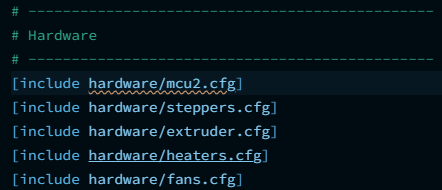
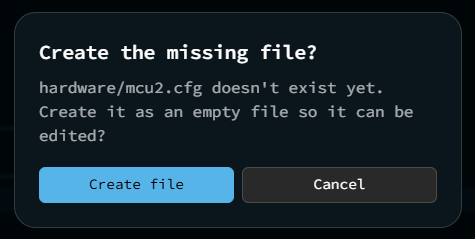
A target that does not exist yet gets a wavy underline and an offer to create it, along with its folder if that is missing too. This lets you build a configuration downward from its include list. Alabaster leaves globs alone, along with any path that would climb out of the configuration root.
File structure lists every [section] in the open file with its line number. File history steps back and forward through the last ten files you opened. The explorer names the last file you edited.
Moving included files
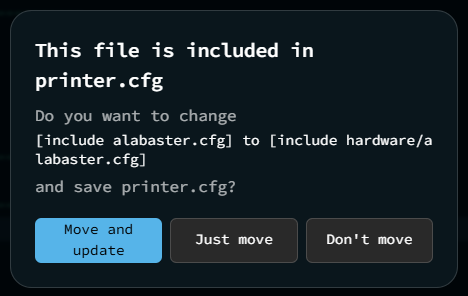
Moving a file that printer.cfg includes breaks that include, which is enough on its own to stop Klipper from starting. Alabaster detects this and offers to rewrite the line: move and update, just move, or don't move. It never edits your configuration without asking. Alabaster leaves a glob include alone, since it may still cover the file.
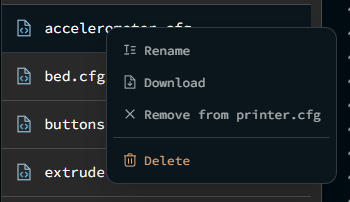
The row menu can also add or remove an include. The list marks files that printer.cfg already includes.
Syntax highlighting
A single syntax highlighter covers Klipper configuration and macros: sections, keys, values, booleans, pin names, Jinja templates and their comments, [include] paths, and SAVE_CONFIG autogen markers. It applies to .cfg, .conf, .cnf, .ini, .toml, and .bkp files. The gutter highlights the active line's number.
Every other file type, including .json, .md, and .gcode, opens as plain text. Klipper's grammar does not describe these formats, and applying it would invent structure that is not there. These are also often the largest files, where highlighting is most expensive.
Images open in their own viewer with zoom: png, jpg, gif, webp, bmp, svg, ico, avif.
Maximize the editor over the explorer, or take it fullscreen.
No file-type gate
Alabaster still opens a file it cannot place as text or image, a text file over 2 MB, or an image over 20 MB. It asks for confirmation first instead of refusing.
Line editing commands
| Command | Shortcut |
|---|---|
| Toggle comment | Ctrl/Cmd+/ |
| Move line up / down | Alt+Up / Alt+Down |
| Duplicate line up / down | Shift+Alt+Up / Shift+Alt+Down |
| Reindent the whole file | Shift+Alt+F |
| Indent / outdent | Tab / Shift+Tab |
These commands act on the config formats the syntax highlighter understands. Each one assumes something about Klipper's format: # as the comment marker, and its continuation-line indentation. A plain-text file was never written to that format.
The full reference of every editor shortcut opens from the header's help button, or with Ctrl/Cmd+?.
Save and restart saves the current file and restarts Klipper. If it is the only file with unsaved edits, this happens immediately. If other files also have unsaved edits, Alabaster asks to save them too, and names them, so no edit stays only in memory when Klipper restarts.
Finding a file
Search covers every file under the root, not just the folder you are standing in.
Turn on Search in files to match file contents as well as names. This lets you find the file that sets rotation_distance by searching, instead of opening files one at a time.
Opening a file while a search is active highlights every match inside it — the line and the exact word — so you land on why it matched instead of rereading the whole file to find it.
Three switches under Explorer settings decide what the list shows:
| Setting | Default | Hides |
|---|---|---|
| Show hidden files | Off | Names starting with a dot |
| Show backup files | Off | .bak, .bkp, a trailing ~, and any name containing "backup", including Klipper's SAVE_CONFIG output |
| Show read-only files | On | Nothing by default |
Folders and files sort independently of each other. Folders always come first.
Automatic list updates
Moonraker sends a notification whenever a file under a watched root is created, deleted, moved, or modified, whether from another tab, a macro, or Klipper's own SAVE_CONFIG. The folder list updates on its own, without polling.
This depends on Moonraker's own file-system watcher, which a moonraker.conf setting can turn off. Use Refresh in the toolbar if the watcher is not running.
Drag and drop
Dragging works in both directions. A row dragged onto a folder or onto .. moves there. Files dragged in from your desktop upload into the folder row you drop them on, not into whichever folder happens to be open.
Alabaster decides whether a drag is allowed per entry, not per folder. A read-only file cannot be dragged, and Alabaster disables its Rename and Delete. A read-only folder will not accept a drop. Moonraker would refuse every one of these operations; Alabaster says so before you attempt it.
Save new config
The header offers to save changes Klipper is holding from a SAVE_CONFIG, and shows a summary of what is being held:
- Probe offset
- Heater model · 6 settings
- Mesh · 121 points
Saving writes them into printer.cfg and restarts Klipper. Discarding restarts without them.
During a print
Both actions restart Klipper, which would end a running print. Both wait until the print finishes instead of offering to interrupt it, and the dialog states this.